How to Upload a Company List to LinkedIn Ads
Just need the template? Download LinkedIn's exact CSVThe complete guide to LinkedIn Matched Audiences. Learn why company lists outperform contact lists, how to segment for your buying committee, and the exact steps to upload your first list.
New to LinkedIn Ads?
List uploads are an advanced feature. If you haven't set up Campaign Manager yet, start with the basics:
Complete LinkedIn Ads Tutorial for Beginners →Watch the Full Tutorial
See exactly how to set up LinkedIn matched audiences step-by-step
Get the LinkedIn Templates
Each template page has the exact headers LinkedIn uses, a free CSV download and a checklist for filling it in properly. No signup required.
LinkedIn company list template
For ABM and account targeting
Upload your target companies and layer with job title targeting for precision campaigns.
View the templateLinkedIn contact list template
For email-based targeting
Upload individual contacts for retargeting, exclusions, or lookalike seed audiences.
View the templateAuthor credentials: This guide is based on auditing 100+ LinkedIn ad accounts and managing over £2M in B2B ad spend. We've tested company vs contact lists across dozens of industries.
What Are LinkedIn Matched Audiences?
LinkedIn Matched Audiences let you upload your own data (company lists or contact lists) to create custom targeting audiences for your LinkedIn ad campaigns. Instead of relying on LinkedIn's native targeting options like job titles, industries, or company size, you can target specific companies or individuals you already know.
This is the foundation of Account-Based Marketing (ABM) on LinkedIn. Whether you're re-engaging lapsed prospects, warming up cold outbound targets, or excluding existing customers, Matched Audiences give you control over exactly who sees your ads.
Two types of Matched Audiences: Company lists (upload company names and domains) and Contact lists (upload individual emails). This guide covers both, and explains why we recommend one over the other.
The Email Matching Problem Nobody Talks About
Here's why most contact list uploads fail: LinkedIn users often sign up with personal emails, but your CRM has their work email. The result? Abysmal match rates and wasted ad spend.
We've seen match rates as low as 20-30% on contact lists, meaning 70-80% of your carefully curated prospects never see your ads. There's a better way.
Why We Recommend Company List Targeting
After running LinkedIn Ads for dozens of B2B clients across manufacturing, IT services, and professional services, we've found that company list targeting consistently outperforms contact list uploads.
The key insight: when you upload a company list, you can then layer it with job title targeting to reach every decision-maker at that company, not just the one contact you happened to have in your CRM.
Company Lists
- Higher match rates – Company names and domains match reliably
- Reach multiple decision-makers – Target the whole buying committee, not just one contact
- Layer with job titles – Get surgical precision by combining with role targeting
- Future-proof – Works even when contacts change jobs
Contact Lists
- Email mismatch issues – Personal vs work email problem
- Single contact per company – Miss other stakeholders
- Good for retargeting known users – When you have verified LinkedIn emails
- Supports hashed emails – For privacy-conscious uploads
What You'll Learn in This Guide
This tutorial walks you through everything, from downloading templates to running your first ABM campaign.
How to Upload a Company List to LinkedIn Ads
This is the core workflow for ABM campaigns on LinkedIn. Follow these steps to create a company-based Matched Audience, then layer with job titles for precision targeting.
300 rows to upload. 300 members to serve. Different things. LinkedIn's 300-row minimum is about the file you send. Your audience only goes live once LinkedIn has actually matched 300 members against it, and matching is never 100%. Upload more than the minimum so you clear the matched threshold with room to spare.
Where to Find Matched Audiences in LinkedIn
Campaign Manager → Plan → Audiences → Create audience → Upload a list. This is also where you'll find your processed audiences when they're ready to use.
Step-by-Step Upload Process
Access Campaign Manager
Log into LinkedIn Campaign Manager. From the top navigation, click 'Plan' → 'Audiences'. This is where all your Matched Audiences live.
Make sure you're in the correct ad account if you manage multiple accounts.
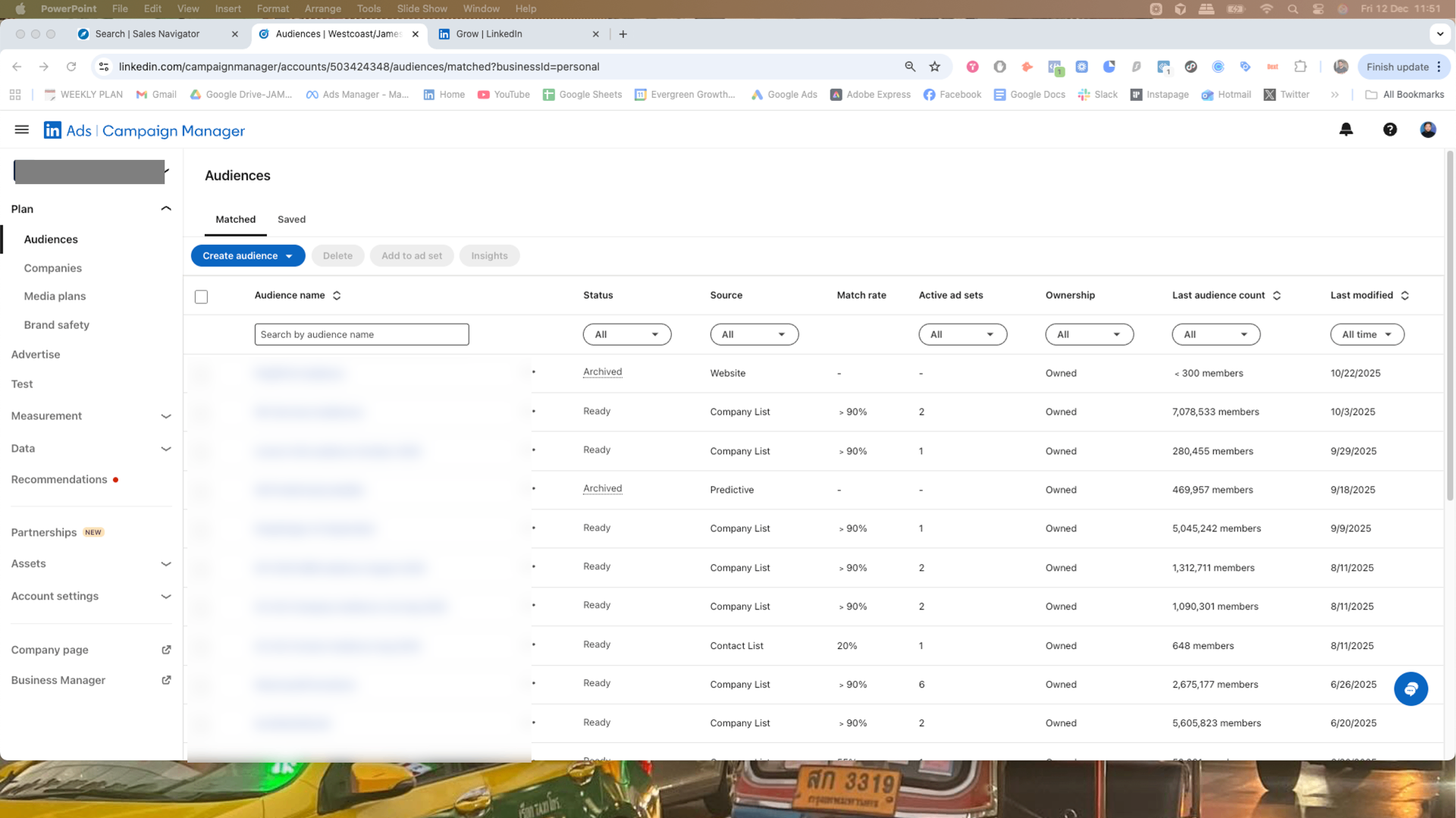
The Audiences page under Plan in LinkedIn Campaign Manager
Create a New Audience
Click the 'Create audience' button, then select 'Upload a list' from the dropdown options.
You'll see options for both Company/Account and Contact uploads. Choose 'Company/Account'.
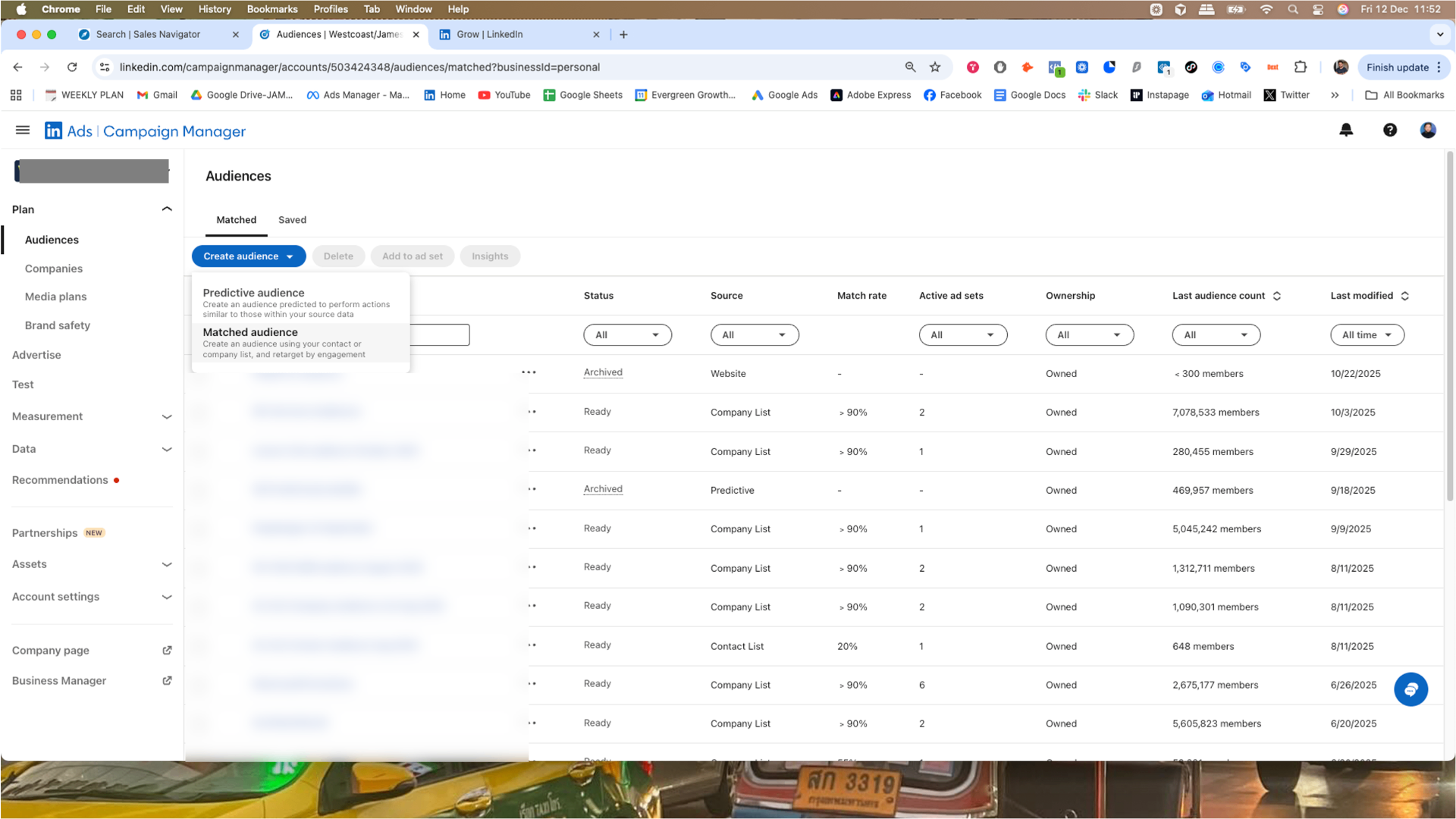
Click 'Create audience' then select 'Upload a list'
Choose Company/Account List
In the modal that appears, select 'Company/Account' as your list type. This tells LinkedIn you're uploading company data, not individual contacts.
Company lists have higher match rates than contact lists because LinkedIn matches against company profiles rather than individual email addresses.
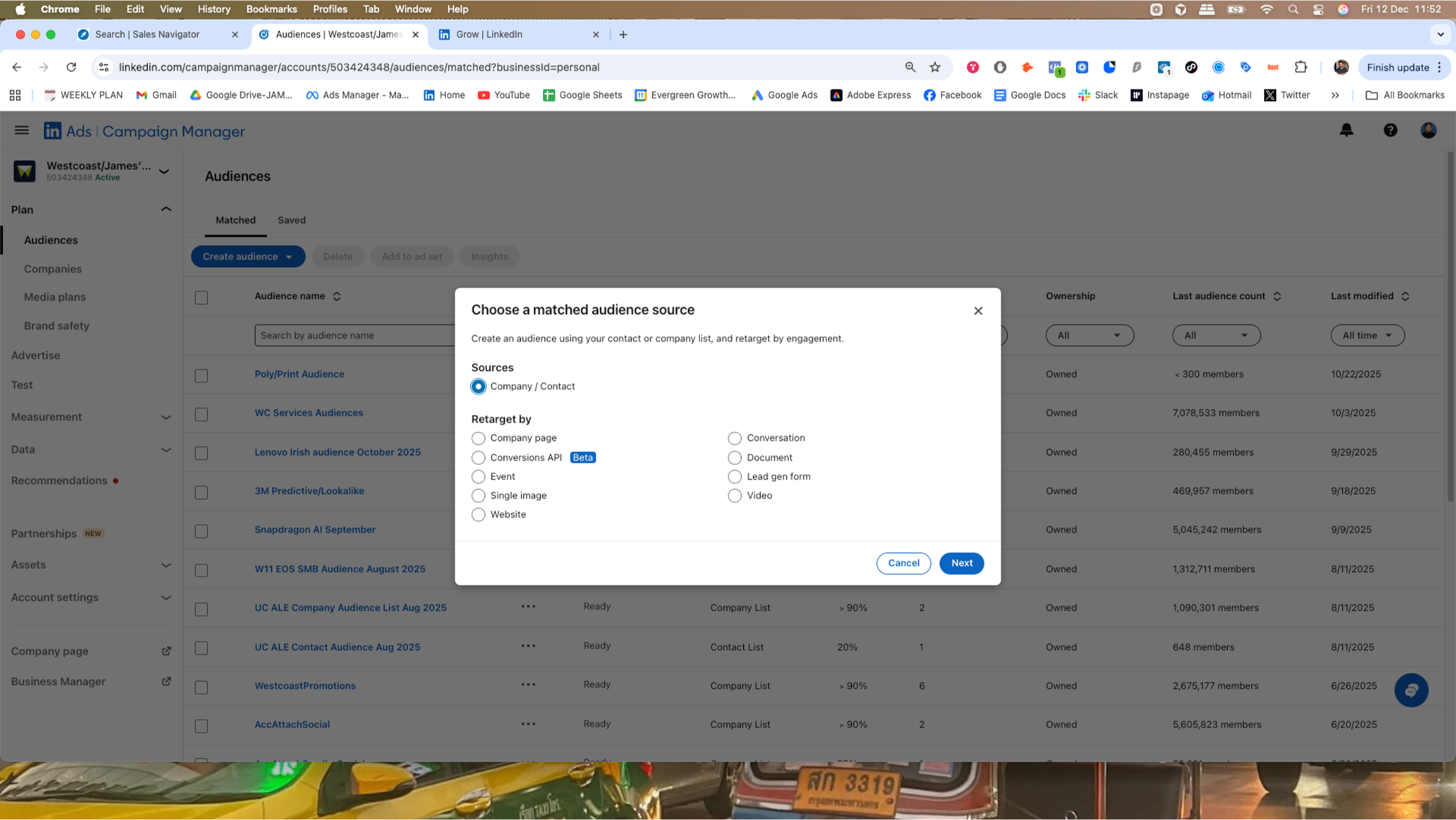
Select 'Company/Account' for ABM targeting
Download the CSV Template
Before uploading, click 'Download template' to get LinkedIn's official CSV format. This ensures your file has the correct column headers.
Changing or removing a header causes an upload error. Use LinkedIn's exact header names, shown in the table below.
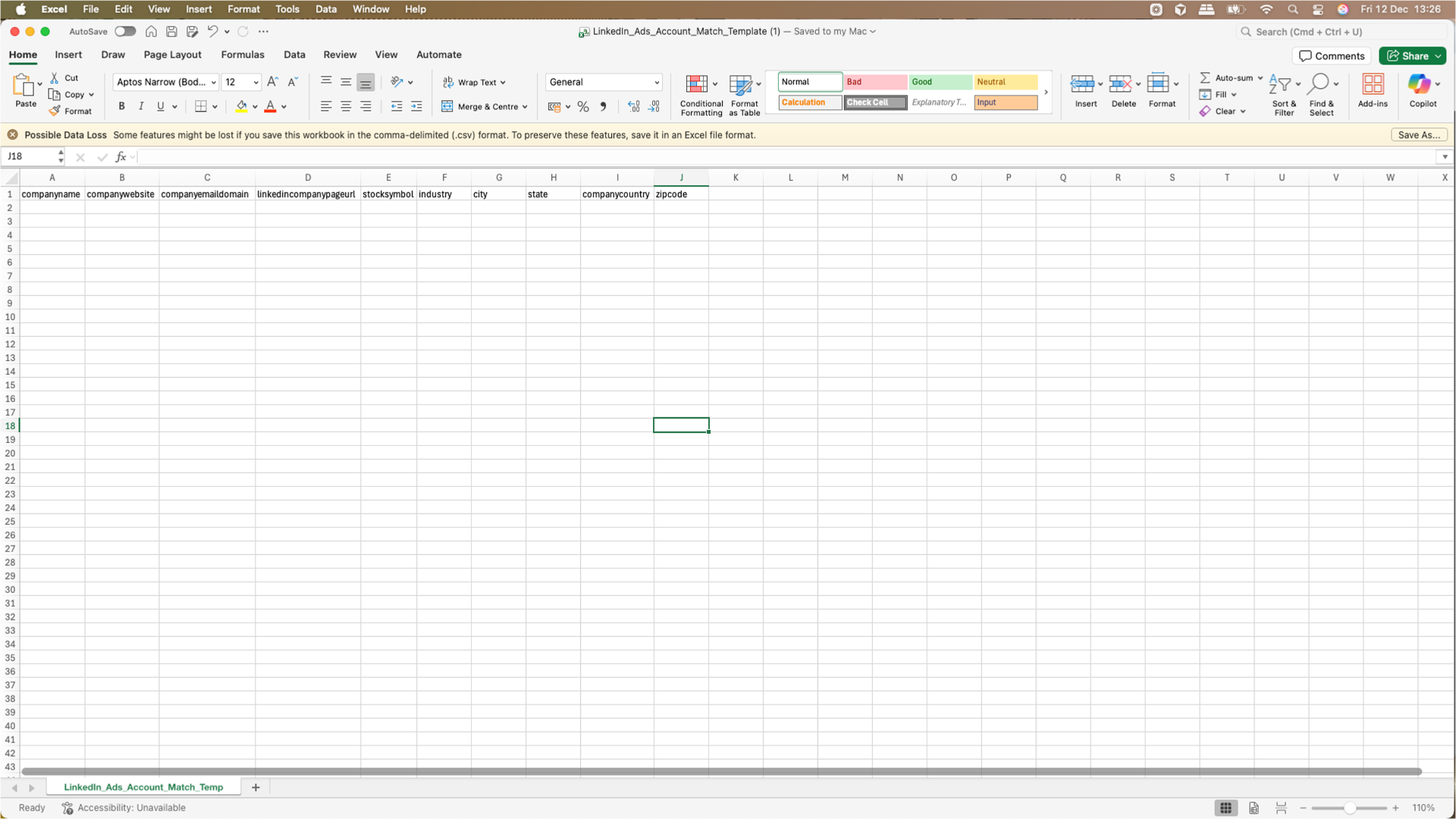
LinkedIn's CSV template opened in Excel, ready to populate with your company data
Prepare Your Company Data
Populate the template with your company list from your CRM. Include as many identifiers as possible, company name, website and LinkedIn URL for best results.
Export your target accounts from HubSpot, Salesforce, or your CRM as a CSV, then map fields to LinkedIn's template.
Upload Your List
Return to Campaign Manager, upload your prepared CSV file, and give your audience a descriptive name (e.g., '2026 Q1 Target Accounts').
Double-check that LinkedIn correctly maps your columns during the upload preview.
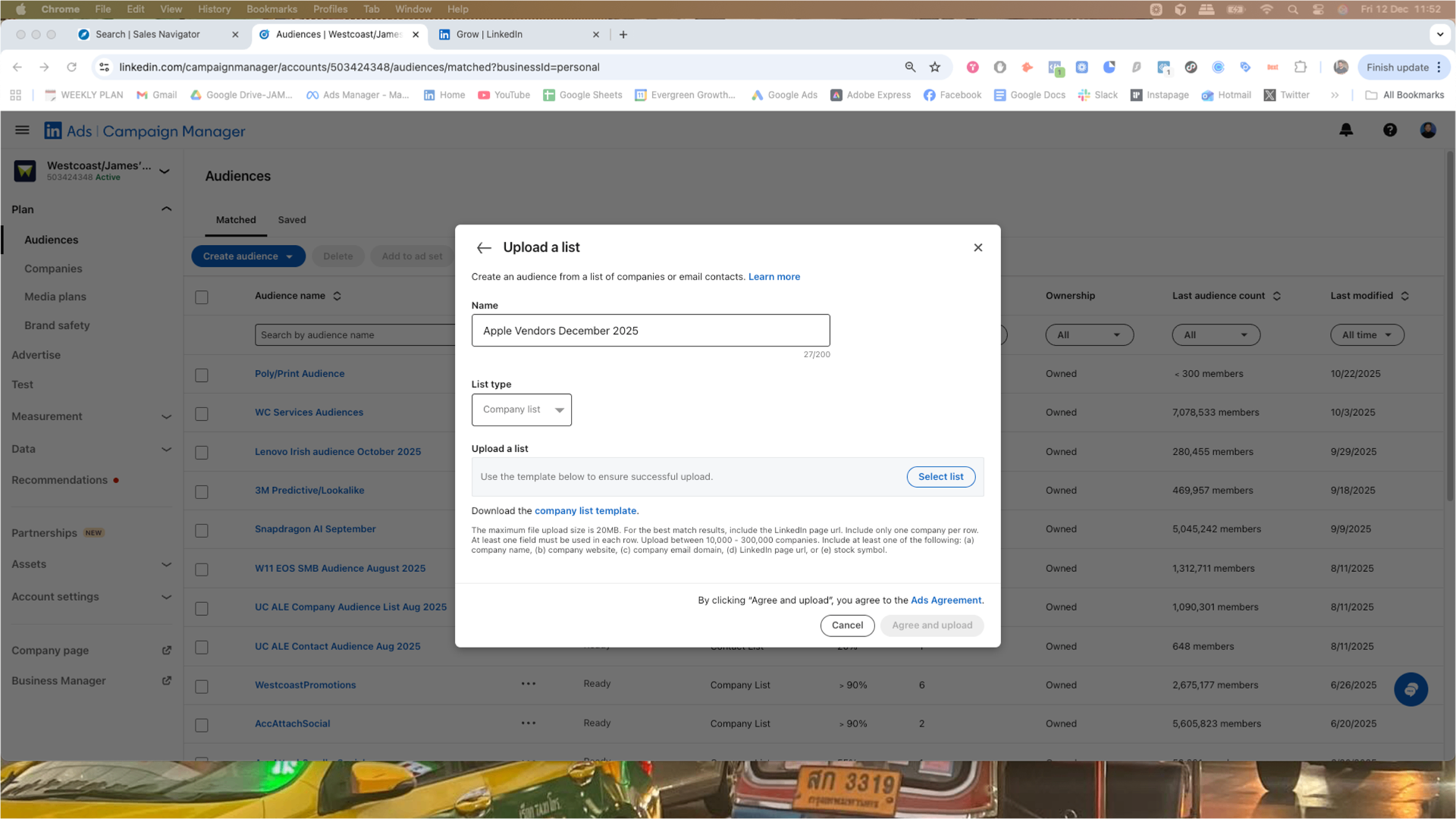
Name your audience and upload your CSV file
Wait for Processing
LinkedIn takes up to 48 hours to process and match your list. You'll receive a notification when it's ready.
300 rows in your file does not mean 300 matched members. If your audience shows fewer than 300 matched members after processing, you'll need to add more companies or additional identifiers.
Layer with Job Title Targeting
Once your company audience is ready, create a new campaign. Add your company list as the audience, then layer with specific job titles to reach decision-makers.
This is how you target only the relevant roles at your exact target companies, instead of everyone who works there.
CSV Fields Reference
LinkedIn needs at least one of companyname, companywebsite, companyemaildomain, linkedincompanypageurl or stocksymbol filled in on every row. These are the exact headers from LinkedIn's own template. Changing them will cause an upload error.
Best Practices for Higher Match Rates
- •Include LinkedIn Company Page URLs, this is the highest-accuracy identifier. Go to each company's LinkedIn page and copy the URL.
- •Use the vanity URL, not a number ID. Your LinkedIn page URL should end in something like
/company/acme/, not a long numeric ID. The numeric version matches less reliably. - •Upload 1,000+ companies, well above the 300-row minimum. Remember, 300 rows uploaded is not the same as 300 members matched.
- •Use multiple identifiers, company name, website and domain together. Redundancy helps LinkedIn match the row.
- •Clean your data first, remove duplicates, fix typos, and keep formatting consistent. "Acme Inc" and "Acme Inc." should be standardised.
- •Keep a draft ad set pointed at the audience. That alone stops the 90-day expiry clock, see below.
Important: 90-day expiry
A matched audience expires if it isn't used in an active or draft ad set within 90 days. The draft part is the useful bit most people miss, you don't need a live campaign spending money, just a draft ad set pointed at the audience. Set a reminder to refresh the list every 60-90 days regardless.
Want us to set up your LinkedIn targeting for you?
Two Powerful Use Cases for Company List Targeting
Whether you're re-engaging past prospects or targeting your dream accounts, company list targeting delivers consistent results. Here's how our clients use it.
Both approaches follow the same workflow: upload your company list, layer with job titles, and run strategic ad campaigns. The difference is in your intent and messaging.
Re-Engage Lapsed Prospects
Deals that went cold, companies that ghosted, prospects who weren't ready yet. They're all still on LinkedIn. Stay top-of-mind until they ARE ready to buy.
Real Result: One client reactivated 3 stalled deals worth $180K within 60 days of running lapsed prospect campaigns.
Target Your Dream Companies (ABM)
Build a list of your ideal accounts. Companies you'd love to work with. Then run ABM campaigns to get on their radar before your sales team reaches out.
ABM Insight: Prospects who've seen your ads 3+ times are 2-3x more likely to respond to sales outreach. Familiarity breeds trust.
Which Approach Should You Start With?
Start with Lapsed Prospects if:
- • You have 300+ stalled/closed-lost opportunities
- • You want faster results (they already know you)
- • You need to justify ad spend quickly
Start with Dream Companies if:
- • You have a clear ICP and target account list
- • Sales is planning outbound in 60-90 days
- • You're building long-term pipeline
Ready to build your company targeting strategy?
Take the Free LinkedIn AssessmentSegmentation: Layer Company Lists with Job Titles
For our clients, we take their company list and segment it by the job titles they actually transact with. This is the key to precision ABM on LinkedIn.
Get super specific and do the due diligence on those job titles. The more accurately you identify the roles that sign contracts, the better your results will be.
The Layering Formula
How to Layer Job Titles in Campaign Manager
Once your company list is processed and ready (allow 24-48 hours), here's exactly how to combine it with job title targeting when creating your campaign:
Create a New Campaign
In Campaign Manager, click 'Create Campaign' and choose your objective (usually Website Visits or Lead Gen).
Add Your Company Audience
Under 'Who is your target audience?', click 'Audiences' and select your uploaded company list from the dropdown.
Layer Job Titles
Stay in the same audience section. Under 'Narrow audience further', add Job Titles. Type the specific titles you sell to.
Review Audience Size
Check the forecasted audience size on the right. You want at least 1,000 members for reliable delivery. If too small, broaden titles.
Exclude Irrelevant Roles (Optional)
Use 'Exclude' to remove roles you don't want, like interns, students, or unrelated seniority levels.
Why This Works So Well
Reach the Buying Committee
Even if you only have one contact per company in your CRM, you can now reach ALL relevant decision-makers at that company. The whole buying committee.
No Email Matching Issues
Company domains match reliably. You're not dependent on having the exact email address someone used to sign up for LinkedIn years ago.
Maximum Efficiency
You can't help but get results with such targeted campaigns. You're only spending money on the exact people who can buy from you at the exact companies you want.
Job Title Examples by Industry
Here are examples of job titles our clients target in different industries. Your specific titles will depend on your product/service and who signs contracts.
Why these roles? These roles make purchasing decisions for equipment, services, and technology
Why these roles? Decision-makers for software, cloud services, and technology purchases
Why these roles? Key stakeholders who approve vendor relationships and major purchases
💡 Pro Tip: Do Your Due Diligence
Before launching, audit your CRM to identify the job titles that actually sign contracts with you. Don't guess – look at your closed-won deals from the past 12 months and identify patterns.
- • What titles appear most frequently in your deals?
- • Who is the typical economic buyer vs. influencer?
- • Are there industry-specific title variations you're missing?
- • Do seniority levels differ by company size?
Ready to target your dream companies with sharper precision?
A Word of Caution on Contact Lists
While contact list uploads can work, they often underperform due to email mismatch issues. People use personal emails on LinkedIn but work emails in your CRM. We recommend company list targeting as your primary strategy, with contact lists as a supplementary tactic for specific use cases.
How to Upload a Contact List to LinkedIn Ads
Contact list uploads work best when you have verified LinkedIn email addresses or when you need to target (or exclude) specific individuals for account-based marketing.
The process is similar to company lists, but with different data requirements and expectations.
When Contact Lists Make Sense
Despite the email matching challenges, contact lists are valuable for these specific use cases:
Event Attendee Lists
People who registered with their professional email for your webinar, conference, or trade show. These often have better match rates.
Customer Exclusion
Upload your customer list to exclude them from acquisition campaigns. Even partial matches help reduce wasted spend.
High-Value Retargeting
Target demo requesters, trial users, or proposal recipients for conversion campaigns. Worth the effort for high-intent contacts.
Lookalike Seed Lists
Upload your best customers to create lookalike audiences. LinkedIn finds similar profiles even with partial matches.
Step-by-Step Contact List Upload
Go to Matched Audiences
Campaign Manager → Plan → Audiences → Create audience → Upload a list
Select Contact List Type
Choose 'Contact' (not Company/Account) and download the template
Prepare Your CSV
Populate with email addresses. Include first name, last name, and company as backup identifiers
Upload and Name
Upload your file, give it a descriptive name, and agree to terms
Wait for Processing
Allow 24-48 hours for matching. You'll be notified when ready
Technical Requirements
Expect Lower Match Rates
Contact list match rates typically range from 30-60%, compared to 70-90% for company lists. Upload 10,000+ contacts to ensure you hit LinkedIn's 300 matched member minimum.
SHA-256 Email Hashing (Privacy-First Upload)
LinkedIn supports pre-hashed emails for organisations with strict privacy requirements. This means you never share raw email addresses with LinkedIn, only encrypted hashes.
Before hashing: john@company.com
After SHA-256: a5f8c6d2e4b3a1c0...
How to hash: Lowercase the email, trim whitespace, then apply SHA-256 encoding. LinkedIn's template includes detailed instructions, and most marketing platforms can export pre-hashed lists.
Privacy & Compliance Reminder
Ensure you have proper consent to use contact data for advertising purposes. Review your privacy policy and local data protection regulations (GDPR, CCPA, etc.) before uploading contact lists. LinkedIn also requires you to agree to their terms during upload.
Not sure which approach is right for your business?
Troubleshooting Common Issues
Running into problems? Here are the most common issues and how to fix them.
Audience shows fewer than 300 members
Possible Causes
- •Not enough rows in the file matched (300 rows uploaded is not the same as 300 members matched)
- •List is too small to begin with
- •Poor data quality (typos, outdated info)
How to Fix
- ✓Add more companies/contacts (aim for 1,000+ for company lists, 10,000+ for contact lists)
- ✓Include more identifier fields (LinkedIn URL, website, domain)
- ✓Clean your data: remove duplicates, fix typos, update company names
Audience is stuck on 'Building'
Possible Causes
- •Processing takes up to 48 hours
- •Large lists take longer to process
- •Occasional LinkedIn system delays
How to Fix
- ✓Wait the full 48 hours before troubleshooting
- ✓Check LinkedIn Campaign Manager status notifications
- ✓If stuck after 48 hours, try re-uploading the list
Very low match rate
Possible Causes
- •Email mismatch (personal vs work emails)
- •Outdated company information
- •Missing key identifier fields
How to Fix
- ✓Switch to company list targeting instead of contact lists
- ✓Include LinkedIn Company Page URLs for highest accuracy
- ✓Update your source data with current information
Audience expired or not active
Possible Causes
- •No campaigns used this audience for 90+ days
- •Audience data is stale
How to Fix
- ✓Keep at least one campaign active using the audience
- ✓Re-upload the list to refresh it
- ✓Set a calendar reminder to refresh every 60-90 days
Quick Reference: Key Numbers
Frequently Asked Questions
Ready to Launch Your ABM Campaign?
Stop wasting ad spend on broad audiences. Get strategic with company targeting and reach the exact decision-makers who can buy from you.
Book a Strategy Call
Get personalized advice on your LinkedIn targeting strategy from our team.
Take the Assessment
Discover if LinkedIn Ads are right for your business in 2 minutes.
Start AssessmentHow do your campaigns compare?
See 2026 UK benchmarks for LinkedIn CPC, CPM, and cost per lead to understand if your ABM campaigns are performing:
LinkedIn Ads UK Benchmarks 2026 →Related Tools & Resources
LinkedIn Ads Budget Calculator
Estimate your CPL, expected leads, and break-even deal size
LinkedIn Ads Benchmarks UK 2026
Complete CPC, CPM, CPL data by industry with expert commentary
Tracking Pixels Setup Guide [2026]
Complete guide to LinkedIn Insight Tag, Meta Pixel, and GTM setup