How to Add a User to Google Ads (2026)
Your agency needs access to Google Ads. Or maybe a new hire. Or that freelancer who's been waiting three days while you figure out the settings.
This takes two minutes. But before you hand over the keys, there's one thing you need to understand first: who actually owns this account. Get that wrong and you'll regret it later.
Written by James Green — I manage Google Ads access across dozens of B2B client accounts. This is based on real onboarding, not Google's help pages (which love to send you in circles).
🚩 You MUST Own Your Google Ads Account
This is the single biggest mistake businesses make with Google Ads. You hire an agency. They create a Google Ads account inside their own Manager Account. They run campaigns for a year or two. The relationship ends.
And suddenly you realise: the campaigns, the conversion data, the keyword history, the audiences, the Quality Scores you spent months building... none of it belongs to you.
If Your Agency Owns Your Google Ads Account, Fix This Today
When someone else owns your ad account, you lose:
- ✗ All campaign history, ad copy tests, and performance data. Years of learning, gone.
- ✗ Your remarketing audiences. The people who visited your website, watched your videos, engaged with your ads.
- ✗ Quality Scores and keyword history. Google rewards accounts with history. Starting fresh means higher costs.
- ✗ Conversion tracking setup. All those events, goals, and attribution paths need rebuilding.
- ✗ Your leverage. If they own the account, you can't easily switch. And they know it.
What Proper Ownership Looks Like
- ✓ You create the Google Ads account under your Google login
- ✓ You are the Admin. Always.
- ✓ Your agency links to your account via their MCC, or gets Standard access
- ✓ You can log in any time and see exactly what's running
- ✓ Switch agency and everything stays. Every campaign, every audience, every conversion.
If your Google Ads account currently sits inside an agency's MCC and you don't have direct access, ask them to transfer ownership. Any agency worth working with will do this without drama. If they resist, that's your answer about whether to keep working with them.
Why Grant Access Properly?
"Just give them the login" is the answer that creates problems six months from now. When three people share one login, you can't tell who changed that bid strategy at 2am. You can't revoke access for one person without locking out everyone. And Google flags shared logins as a security risk.
Accountable
Every change is logged against a specific user. You can see exactly who did what and when.
Controlled
Standard access lets them run campaigns without touching your billing or user settings.
Revocable
Remove one person's access in seconds. No password resets, no collateral damage.
First time running Google Ads for B2B? Our complete B2B advertising guide covers platform selection, budget frameworks, and what actually moves the needle.
Google Ads Access Levels Explained
Google Ads has four access levels. Pick based on what the person actually needs to do, not how important they are.
| Access Level | Best For | What They Can Do |
|---|---|---|
| Admin | You (the account owner) | Everything: campaigns, billing, user management, account settings |
| Standard | Agencies, senior marketers | Create/edit campaigns, adjust bids, write ads, set up conversions. No billing or user management. |
| Read-only | Stakeholders, consultants | View campaigns, reports, and data. Cannot change anything. |
| Email-only | Executives, passive stakeholders | Receives performance reports by email. No login access at all. |
The short version: Agency running your campaigns? Standard. Someone who just wants to see how things are going? Read-only. Keep Admin for yourself. Always.
Step-by-Step: Add a User to Google Ads
1Sign In and Open Tools & Settings
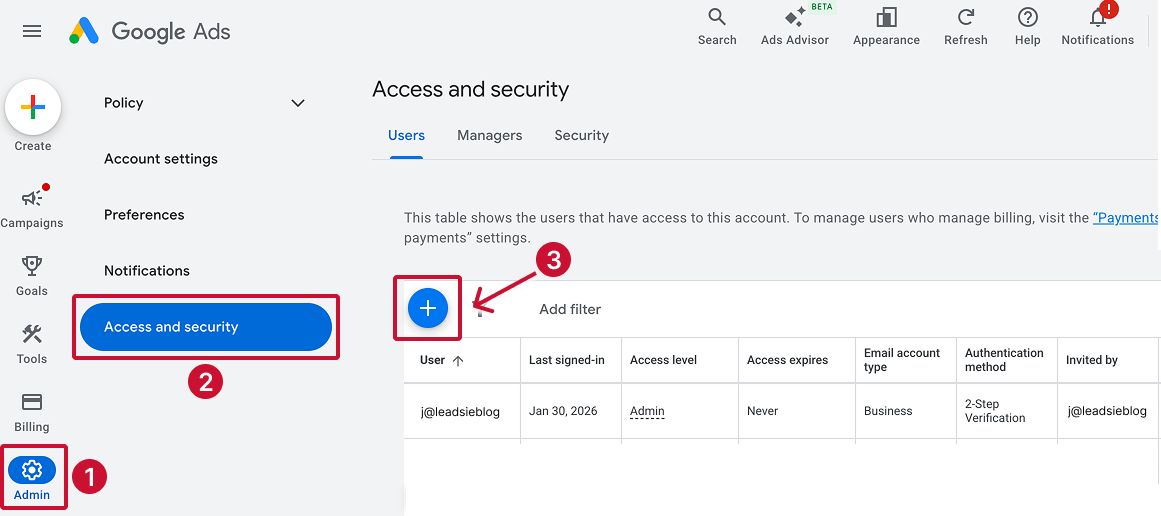
Go to ads.google.com and make sure you're signed in with the account that owns the ad account. Click Admin in the left sidebar (gear icon at the bottom).
2Go to Access and Security
Under Setup, click "Access and security". This shows everyone who currently has access to the account and their access level.
3Click the + Button
Click the blue + icon to add a new user. You'll see a form asking for their email address and access level.
4Enter Email and Choose Access Level
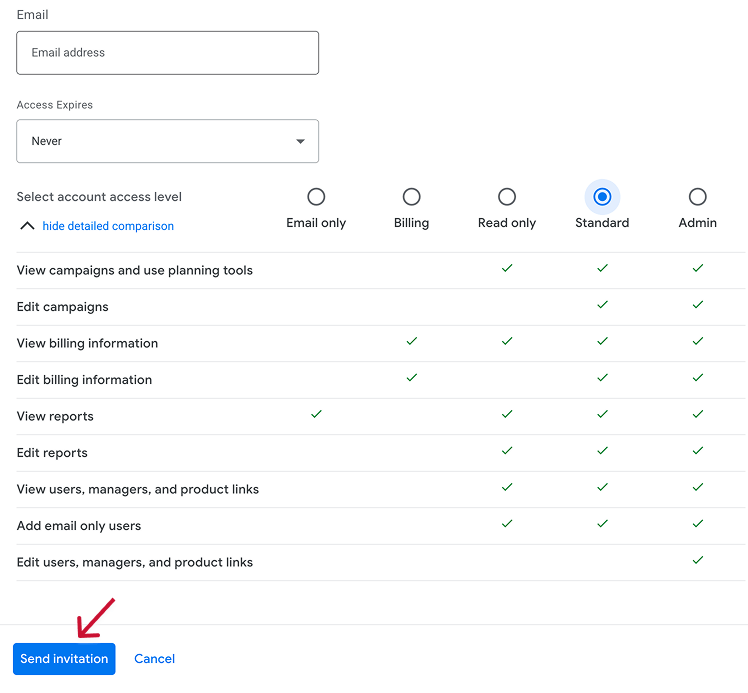
Enter their Google account email address. Select Standard for agencies and marketers who need to manage campaigns. Select Read-only for people who just need visibility.
Don't give Admin access unless they genuinely need to manage billing and other users. For 95% of agency relationships, Standard is the right call.
5Send Invitation and Wait for Acceptance
Click Send invitation. Unlike Google Analytics (where access is instant), Google Ads requires the person to accept the invitation via email before they can log in. Chase them if they haven't accepted within a day.
Alternative: Agency MCC Linking
If your agency uses a Manager Account (MCC), they might send you a link request instead. You'll see it in your Google Ads account under Tools & Settings → Access and security → Managers tab.
Accept the request, and they'll have management access through their MCC. This is the standard approach for established agencies and gives you the same control. You can unlink them at any time.
Both methods are fine. Direct user invite is simpler. MCC linking is more structured and what most professional agencies prefer.
Bonus: Link Google Ads to Google Analytics 4
If you're running Google Ads, linking to GA4 is borderline essential. Without it, you can see clicks in Google Ads, but you can't see what those people did after they landed on your site. Did they bounce? Did they convert? Did they visit five pages and come back three days later? GA4 tells you.
Need to grant GA4 access too? Our Google Analytics user access guide covers the full process with screenshots.
Common Mistakes to Avoid
Letting your agency create the Google Ads account inside their MCC
→ Create the account yourself. Link it to their MCC. That way you own the account, the data, the audiences, and the conversion history. Forever.
Giving Admin access when Standard is enough
→ Admin can access billing and manage other users. Standard lets them run campaigns without touching anything sensitive.
Not linking Google Ads to GA4
→ Without the link, you can't see what ad clicks actually do on your website. Half your measurement is missing.
Sharing the login instead of adding users
→ Shared logins mean no accountability, no ability to revoke individual access, and a Google security flag. Add users properly.
Forgetting Google Ads access doesn't include GA4 or GTM
→ These are separate platforms with separate permissions. If your agency needs all three (and they probably do), grant access to each one individually.
Not checking conversion tracking after granting access
→ Your agency has access, great. But if conversion tracking isn't set up, they're optimising towards clicks, not actual business results. Get this sorted first.
AI Setup Assistant
Got a specific situation? Copy this prompt into ChatGPT or Claude for tailored help:
Google Ads Access Setup Assistant
You are a Google Ads expert. This prompt is based on the methodology from evergreen-growth.com/articles/add-user-google-ads

I need help adding a user to my Google Ads account.

Please ask me these questions one at a time, then provide customised guidance:

1. Are you the admin/owner of the Google Ads account?
2. Who are you adding? (agency, team member, freelancer)
3. Do you have their Google account email address?
4. Is your agency using a Manager Account (MCC)?
5. What do they need to do? (Run campaigns, view reports only, manage billing)
6. Do they also need access to Google Analytics 4 or Google Tag Manager?

After I answer, provide:
- Step-by-step instructions for my situation
- Which access level to assign and why
- Whether to use direct invite or MCC linking
- How to verify access is working
- Security best practices
Google Ads access is sorted. Now finish the full stack.
Add User to Google Analytics 4
GA4 is where you see what ad clicks actually do on your site. Your agency needs this to measure what matters.
Read the guideAdd User to Google Tag Manager
GTM manages your tracking tags. If your agency is setting up conversion events, they need GTM access too.
Read the guideComplete Tracking Pixels Guide
GA4, Google Ads tag, LinkedIn Insight Tag, and Meta Pixel. All in one guide so nothing gets missed.
Read the guideGTM B2B Tracking Setup
The proper way to install tracking for B2B. One container, everything organised, nothing breaking.
Read the guideAdd a user to Google Search Console — For SEO. Your agency needs this to track organic search performance alongside your paid campaigns.
Add a partner to Meta Business Manager — Running Facebook or Instagram ads too? Here's the Meta walkthrough.
Add a user to LinkedIn Campaign Manager — The LinkedIn equivalent. Different process, same ownership principles.
LinkedIn vs Google vs Meta for B2B — Not sure which platforms to prioritise? This breaks down when each one makes sense.
Want someone to set up your entire Google stack properly?
We handle Google Ads, GA4, GTM, conversion tracking, and all access permissions as part of client onboarding. Clean data, proper ownership, nothing missed. Takes about 15 minutes on your end.
Access is sorted. Now make sure your ads aren't boring.
Most B2B ads look like they were designed by a committee and approved by legal. If your campaigns are going to actually work, the creative needs to stop the scroll. These will help.
Scroll-Stopping Ads for "Boring" B2B
Your industry isn't boring. Your ads are. Here's how to fix that with proven creative frameworks.
Read the guideSteal These 4 B2B Ad Formats
The Elite Secret, Deal-Killer, Proof Ping, and Buyer POV. Real concepts you can take and run with.
Steal themFilm a B2B Video Ad on Your Phone
Your best sales pitch, filmed on your iPhone, running 24/7 to your dream customers. The exact blueprint.
Get the blueprintAnti-Ad Builder
Generate bold, pattern-interrupting ad copy that sounds nothing like your competitors. Built to stop the scroll.
Try it free6 ecom ad concepts stolen from B2C — DTC brands are years ahead on creative. These proven concepts, adapted for B2B, will make your ads look nothing like your competitors'.
B2B Facebook ad creative that actually works — Real examples with breakdowns. Formats for retargeting, cold prospecting, and lead generation.
CHAOS and SINK frameworks for B2B ads — Two frameworks and two creative drills to generate headlines that stop the scroll.
Watch Free B2B Ad Tutorials
Campaign breakdowns, creative strategy, and LinkedIn Ads walkthroughs — straight from a practitioner, not a guru.
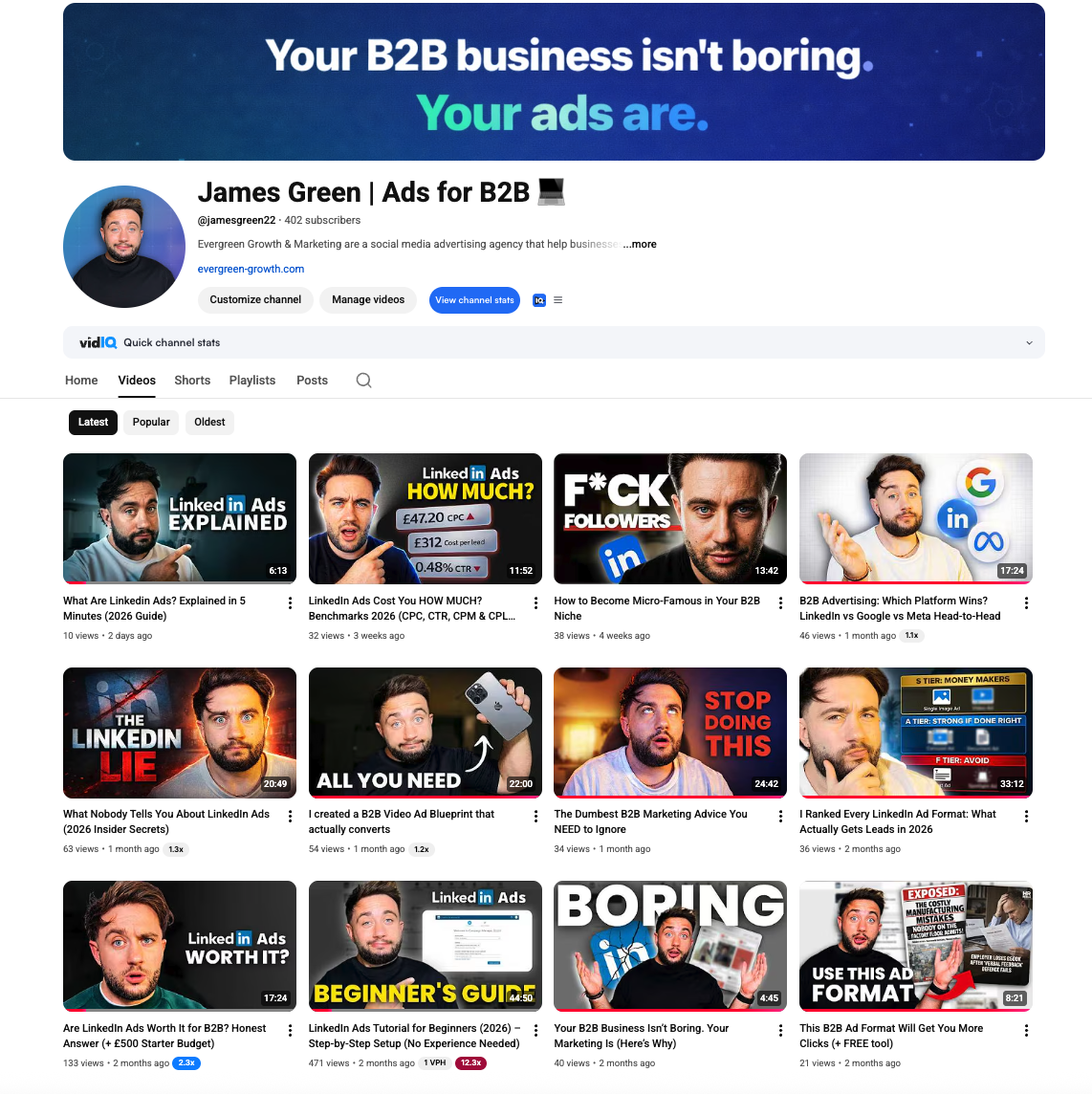
James Green | Ads for B2B
Free B2B advertising tutorials, LinkedIn Ads breakdowns, and creative strategy
Frequently Asked Questions
Related Tools & Resources
LinkedIn Ads Budget Calculator
Estimate your CPL, expected leads, and break-even deal size
LinkedIn Ads Benchmarks UK 2026
Complete CPC, CPM, CPL data by industry with expert commentary
Tracking Pixels Setup Guide [2026]
Complete guide to LinkedIn Insight Tag, Meta Pixel, and GTM setup
LinkedIn Insight Tag Setup
Step-by-step LinkedIn pixel installation for retargeting
Related Searches
People searching for this topic also search for: