How to Create a Google Ads Account (2026)
Google really wants you to create a campaign the moment you sign up. Their setup wizard pushes you through targeting, bidding, and budget screens before you've even understood what you're doing. By the time you realise, you've already spent £50 on clicks you didn't need.
This guide shows you how to create a clean Google Ads account in Expert Mode — no accidental campaigns, no default settings burning your budget, no surprises. Ten minutes and you'll have a properly configured account ready for your first real campaign.
Written by James Green — I've set up Google Ads accounts for dozens of B2B clients. Google's onboarding is designed to get you spending fast, not spending smart. This guide is the antidote.
🚩 Skip the Guided Setup (Use Expert Mode)
When you first visit Google Ads, you'll see a friendly setup wizard. It looks helpful. It asks about your goals, your website, your budget. And then it creates a campaign for you with:
What Google's "Smart" Setup Does by Default
- ✗ Broad match keywords that show your ads for irrelevant searches
- ✗ Automated bidding that maximises clicks, not conversions
- ✗ Display Network enabled (showing banner ads on random websites)
- ✗ Budget set to whatever Google "recommends" (designed for their revenue, not yours)
- ✗ No conversion tracking, so there's no way to measure what's actually working
What You Want Instead
- ✓ A clean, empty account with no running campaigns
- ✓ Expert Mode unlocked for full control over targeting and bidding
- ✓ Conversion tracking set up before your first ad goes live
- ✓ GA4 linked so you can see what happens after the click
- ✓ Campaigns built manually with proper keyword match types and negative keywords
Sound familiar? This is exactly the kind of trap we cover in our LinkedIn Ads insider guide. Every platform's defaults are designed to maximise their revenue, not yours.
What You Need Before You Start
Google Account
A Google account (Gmail or Google Workspace). This will be the admin login for your ad account.
Payment Method
Credit or debit card. You won't be charged until you launch a campaign.
Your Website URL
Where your ads will send people. A dedicated landing page works best for B2B.
Step-by-Step: Create Your Google Ads Account
1Go to Google Ads
Visit ads.google.com and click "Start now". Sign in with the Google account you want to own this ad account. Use a company Google Workspace account if you have one.
2Switch to Expert Mode
Google will immediately show you a "What's your main advertising goal?" screen. Ignore it. Look at the bottom of the page for a small link that says "Switch to Expert Mode". Click it.
This is the most important step. Expert Mode gives you full control over campaign types, bidding strategies, keyword match types, and targeting. Smart Mode hides all of this and makes decisions for you — badly, for B2B.
The "Switch to Expert Mode" link is intentionally small and easy to miss. Google doesn't want you to use it. That's exactly why you should.
3Create an Account Without a Campaign
In Expert Mode, you'll see campaign objective options (Sales, Leads, Website traffic, etc.). Don't select any of them. Instead, click "Create an account without a campaign" at the bottom.
This gives you a clean, empty Google Ads account. No campaigns running, no money being spent, nothing configured that you didn't choose.
4Confirm Your Account Settings
Google will ask you to confirm:
- • Billing country: United Kingdom (or wherever your business is registered)
- • Time zone: (GMT) London. This affects when your daily budgets reset.
- • Currency: British Pound (£). This cannot be changed later.
Both currency and time zone are permanent. If you pick the wrong ones, you'll need to create an entirely new account. Verify these settings before clicking Submit.
5Explore Your New Account
Click "Explore your account". You'll land in the Google Ads dashboard — empty, clean, and ready for proper configuration. No campaigns, no spending, no defaults you didn't choose.
Setting Up Billing
Google may have asked for billing during setup. If not, you'll need to add it before launching campaigns.
Pro tip: Use a company card or set up a shared billing profile. Ads accounts tied to personal cards create problems when employees leave.
First Things to Configure (Before You Spend a Penny)
Your account exists. Before you create your first campaign, set up these three things. Without them, you'll be spending money but learning nothing.
🎯 1. Set Up Conversion Tracking
Go to Goals → Conversions → Create conversion action. Define what counts as a conversion — form submissions, phone calls, demo bookings. Without this, Google optimises for clicks (which cost you money) instead of conversions (which make you money).
📊 2. Link Google Ads to GA4
In Google Analytics 4, go to Admin → Product links → Google Ads links → Link. This lets you see what people do after clicking your ads — bounce rates, pages visited, time on site, and offline conversions.
Need to set up GA4 first? Our Google Analytics access guide covers the full setup.
👥 3. Grant Access to Your Team or Agency
If you're working with an agency, add them now so they can configure campaigns from a clean starting point.
How to add a user to Google Ads — Full walkthrough with access levels explained.
Common Mistakes to Avoid
Using Smart Mode instead of Expert Mode
→ Smart Mode automates everything — badly for B2B. Expert Mode gives you control over targeting, bidding, and match types. Always switch.
Creating a campaign during the setup wizard
→ Google's guided setup creates a campaign with broad match keywords and automated bidding. This will spend your money on irrelevant clicks immediately.
Not setting up conversion tracking before launching
→ Without conversions, Google optimises for clicks. Clicks cost money. Conversions make money. Track the thing that matters.
Choosing the wrong currency or time zone
→ Both are permanent. GBP and London time zone for UK businesses. Verify before submitting.
Letting your agency create the account under their MCC
→ Create the account yourself. Your data, your audiences, your Quality Scores. Grant your agency Standard access — they don't need Admin.
Starting with Display campaigns instead of Search
→ Search targets people actively looking for your solution. Display shows banner ads on random websites. For B2B, always start with Search.
Setting the account up properly is step one. If you want someone to build and run the campaigns, here's how I run Google Ads for B2B companies.
AI Setup Assistant
Creating your first Google Ads account? Copy this prompt into ChatGPT or Claude for personalised setup guidance:
Google Ads Account Setup Assistant
You are a Google Ads expert. This prompt is based on the methodology from evergreen-growth.com/articles/create-google-ads-account

I'm setting up a Google Ads account for the first time and need guidance.

Please ask me these questions one at a time, then provide customised step-by-step guidance:

1. Do you already have a Google account (Gmail or Google Workspace)?
2. What country are you in and what currency do you want for billing?
3. Do you have a website with a landing page for your ads?
4. What product or service are you advertising?
5. What's your approximate monthly advertising budget?
6. Will you be managing ads yourself or granting access to an agency?

After I answer, provide:
- Step-by-step account creation in Expert Mode
- Recommended first campaign type (Search vs Display)
- Conversion tracking setup for my business type
- Budget allocation advice
- Keyword research starting points
- Common mistakes to avoid for my situation
Account created. Now make it work.
Add a User to Google Ads
Grant your agency or team member the right access level to manage your campaigns.
Add usersB2B Advertising: The Complete Guide
Platform selection, budget frameworks, ad creative, and measurement. Everything for B2B ads.
Read the guideAdd User to Google Analytics 4
Link GA4 to your Google Ads account and grant your team access to see what clicks actually do.
Set up GA4Complete Tracking Pixels Guide
Google Ads tag, LinkedIn Insight Tag, Meta Pixel — all in one guide so nothing gets missed.
Set up trackingLinkedIn vs Google vs Meta for B2B — Not sure if Google Ads is the right platform for you? This comparison breaks it down honestly.
Add a user to Google Tag Manager — If your agency manages your tracking, they'll need GTM access too.
Want someone to set up your Google Ads properly from day one?
We handle account creation, conversion tracking, GA4 linking, keyword research, and your first campaign structure. Properly configured so you don't waste your first month's budget on Google's defaults.
Access is sorted. Now make sure your ads aren't boring.
Most B2B ads look like they were designed by a committee and approved by legal. If your campaigns are going to actually work, the creative needs to stop the scroll. These will help.
Scroll-Stopping Ads for "Boring" B2B
Your industry isn't boring. Your ads are. Here's how to fix that with proven creative frameworks.
Read the guideSteal These 4 B2B Ad Formats
The Elite Secret, Deal-Killer, Proof Ping, and Buyer POV. Real concepts you can take and run with.
Steal themFilm a B2B Video Ad on Your Phone
Your best sales pitch, filmed on your iPhone, running 24/7 to your dream customers. The exact blueprint.
Get the blueprintAnti-Ad Builder
Generate bold, pattern-interrupting ad copy that sounds nothing like your competitors. Built to stop the scroll.
Try it free6 ecom ad concepts stolen from B2C — DTC brands are years ahead on creative. These proven concepts, adapted for B2B, will make your ads look nothing like your competitors'.
B2B Facebook ad creative that actually works — Real examples with breakdowns. Formats for retargeting, cold prospecting, and lead generation.
CHAOS and SINK frameworks for B2B ads — Two frameworks and two creative drills to generate headlines that stop the scroll.
Watch Free B2B Ad Tutorials
Campaign breakdowns, creative strategy, and LinkedIn Ads walkthroughs — straight from a practitioner, not a guru.
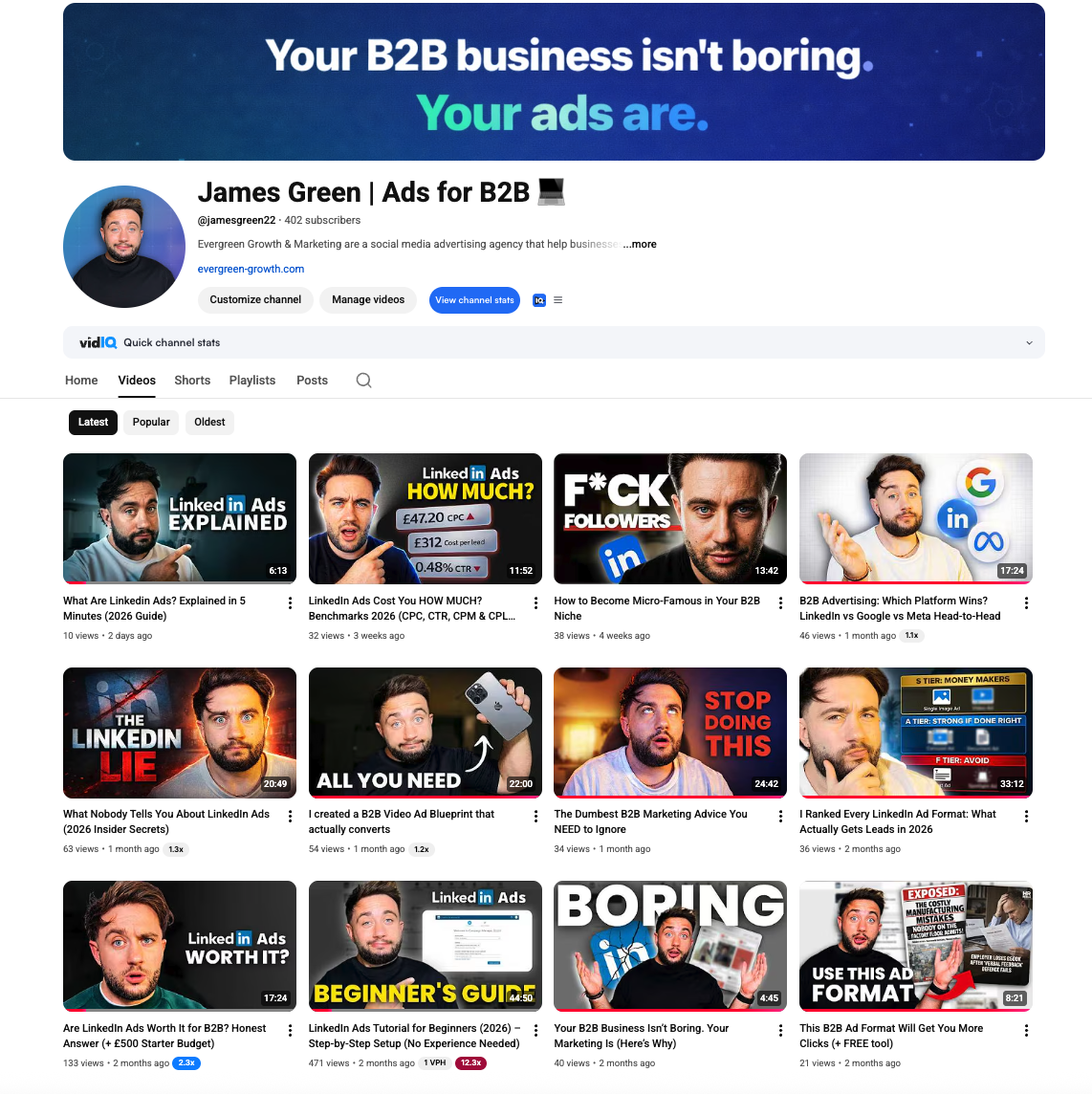
James Green | Ads for B2B
Free B2B advertising tutorials, LinkedIn Ads breakdowns, and creative strategy
Frequently Asked Questions
Related Tools & Resources
LinkedIn Ads Budget Calculator
Estimate your CPL, expected leads, and break-even deal size
LinkedIn Ads Benchmarks UK 2026
Complete CPC, CPM, CPL data by industry with expert commentary
How to Lower Your LinkedIn CPC and CPM
Cut LinkedIn costs without losing the buyers who matter
What's a Good LinkedIn Ads CTR?
CTR benchmarks by ad format and how to diagnose a low CTR
Related Searches
People searching for this topic also search for: